Already organise alerts in Discord
Choose Discord when a private channel fits your existing workflow and you are comfortable checking server and channel notification settings.
 StudyChimeAlerts, filters & trends for Prolific
Prolific phone notifications
To receive Prolific notifications on your phone with StudyChime, keep your signed-in Prolific studies page open in Chrome on a computer, then connect Discord, Telegram, or Pushover as a private mobile destination.
Your computer monitors the visible studies page. The chosen provider's mobile app delivers the phone notification. StudyChime is not a standalone mobile app and does not monitor Prolific from your phone.
Quick comparison
All three methods can carry private StudyChime alerts to a phone. They differ mainly in how the destination is created, where credentials are stored, and whether alerts live in a chat app or a dedicated push app.
| Method | Best suited to | StudyChime needs | Consider before choosing |
|---|---|---|---|
| Discord | People who already use Discord and want a separate private channel | A webhook URL from a private channel | Server, channel and phone notification settings can each mute the alert |
| Telegram | People who want a lightweight private bot conversation across devices | Your bot token and the correct chat ID | You must start the bot and protect both credentials |
| Pushover | People who prefer study alerts in a dedicated push-notification app | Your user key and a Pushover application token | Pushover is a separate service with its own account and app terms |
Recommendation by user type
There is no universally best provider. Start with one method, send a test message, and add another only if it has a clear purpose.
Choose Discord when a private channel fits your existing workflow and you are comfortable checking server and channel notification settings.
Choose Telegram when you want messages in a private conversation with a bot you created, without setting up a Discord server channel.
Choose Pushover when a dedicated push app is more useful than mixing study messages into Discord or Telegram conversations.
Use browser notifications and optional sound instead. They do not require an external provider and are not phone notifications.
Provider details
Discord
StudyChime posts an alert through a webhook created for a Discord channel. This keeps study messages separate from ordinary direct messages and lets you use Discord on both desktop and mobile without a shared StudyChime bot.
Keep the webhook URL private because anyone who has it may be able to post to that channel. If messages arrive but the phone stays silent, check server notifications, channel overrides, muted categories, and the phone's Discord permission.
Read the Discord notification overview or follow the Discord webhook setup guide.
Telegram
Telegram delivery uses a bot token and chat ID that you provide. The bot sends study alerts to the private chat or destination identified by that chat ID, and Telegram can show the same conversation on your signed-in devices.
Start the bot before testing, confirm that the chat ID belongs to the intended private destination, and treat both values as credentials. A working bot cannot message the right place if its chat ID is wrong.
Read the Telegram notification overview or follow the Telegram bot setup guide.
Pushover
Pushover separates notification delivery from general chat. StudyChime sends a message using the user key for your Pushover account and an application token created for your private StudyChime destination.
Confirm that the intended device is registered with Pushover and that phone notifications are permitted. Pushover is an independent third-party service, so its availability, limits, pricing and mobile behaviour are governed by Pushover rather than StudyChime.
Read the Pushover notification overview or follow the Pushover setup guide.
Setup overview
Add the extension from the Chrome Web Store and complete Quick Start.
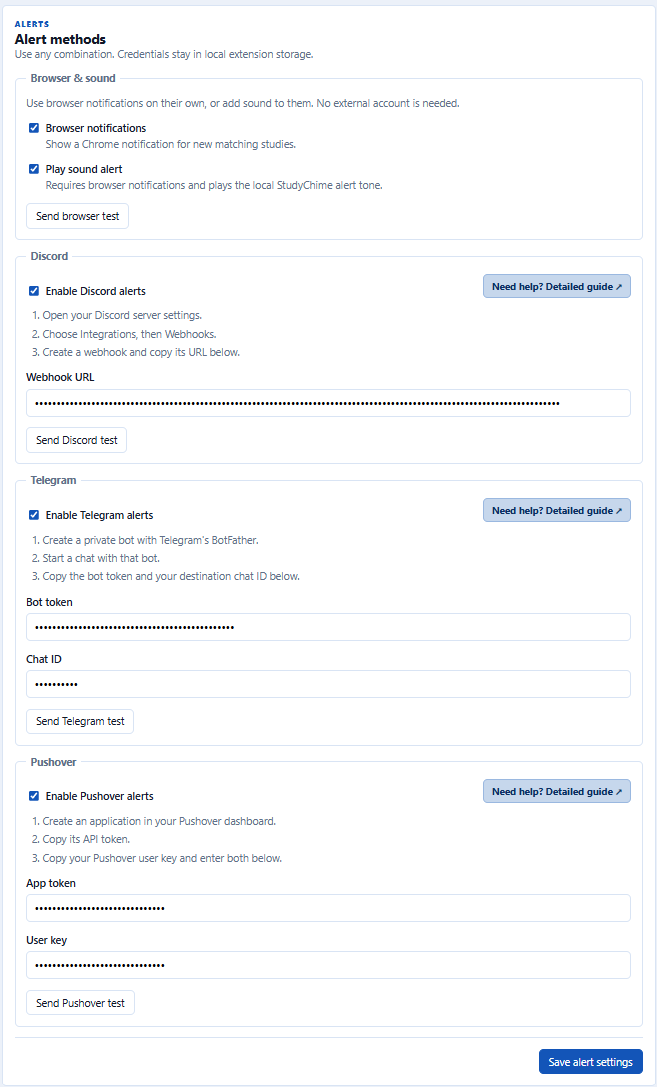
Set up the webhook, bot chat, or Pushover application details for the provider you chose.
Confirm that the provider accepts the test and that the correct destination receives it.
Review app permissions, conversation mutes, Focus modes, battery settings and notification sound.
Privacy
Discord webhook URLs, Telegram bot tokens and chat IDs, and Pushover tokens and user keys are stored in Chrome extension storage on your device. StudyChime sends alert messages directly from your browser to the provider you configure.
StudyChime never asks for your Prolific password and does not request Chrome cookie permission.
You configure your own private destination rather than subscribing to a public community study feed.
Alerts may include information visible on your studies page, so do not send them to public channels, groups or third-party websites.
Each provider controls its own account security, service availability, mobile delivery and data handling.
For the complete data flow and permission list, read How StudyChime protects your data and the StudyChime Privacy Policy.
Questions
Yes. StudyChime runs in Chrome on your computer and can send matching study alerts to the Discord, Telegram, or Pushover app on your phone. The computer, Chrome, and your signed-in Prolific studies page must remain open.
StudyChime is a Chrome extension, not a standalone iPhone or Android app. Your phone receives the message through the mobile app for the external provider you configure.
Discord is convenient if you already use a private server, Telegram is a lightweight choice for messages from your own bot, and Pushover is suited to people who want a dedicated push-notification app. The best choice is the private service you will configure and check reliably.
No. The computer running StudyChime must remain on, Chrome must keep running, and the signed-in Prolific studies page must stay open because the phone app receives alerts but does not monitor Prolific.
The provider may have received the message while the phone suppressed its alert. Check notification permission, muted channels or chats, Focus or Do Not Disturb, battery optimisation, and provider-specific mobile settings.
No. StudyChime does not ask for your Prolific password or request Chrome cookie permission. External messages can contain visible study details, so use a private destination that you control.
Install StudyChime, keep your Prolific studies page open, and connect one private destination at a time.
StudyChime is independent and is not affiliated with, endorsed by, or supported by Prolific. Questions can be sent to support@studychime.com.